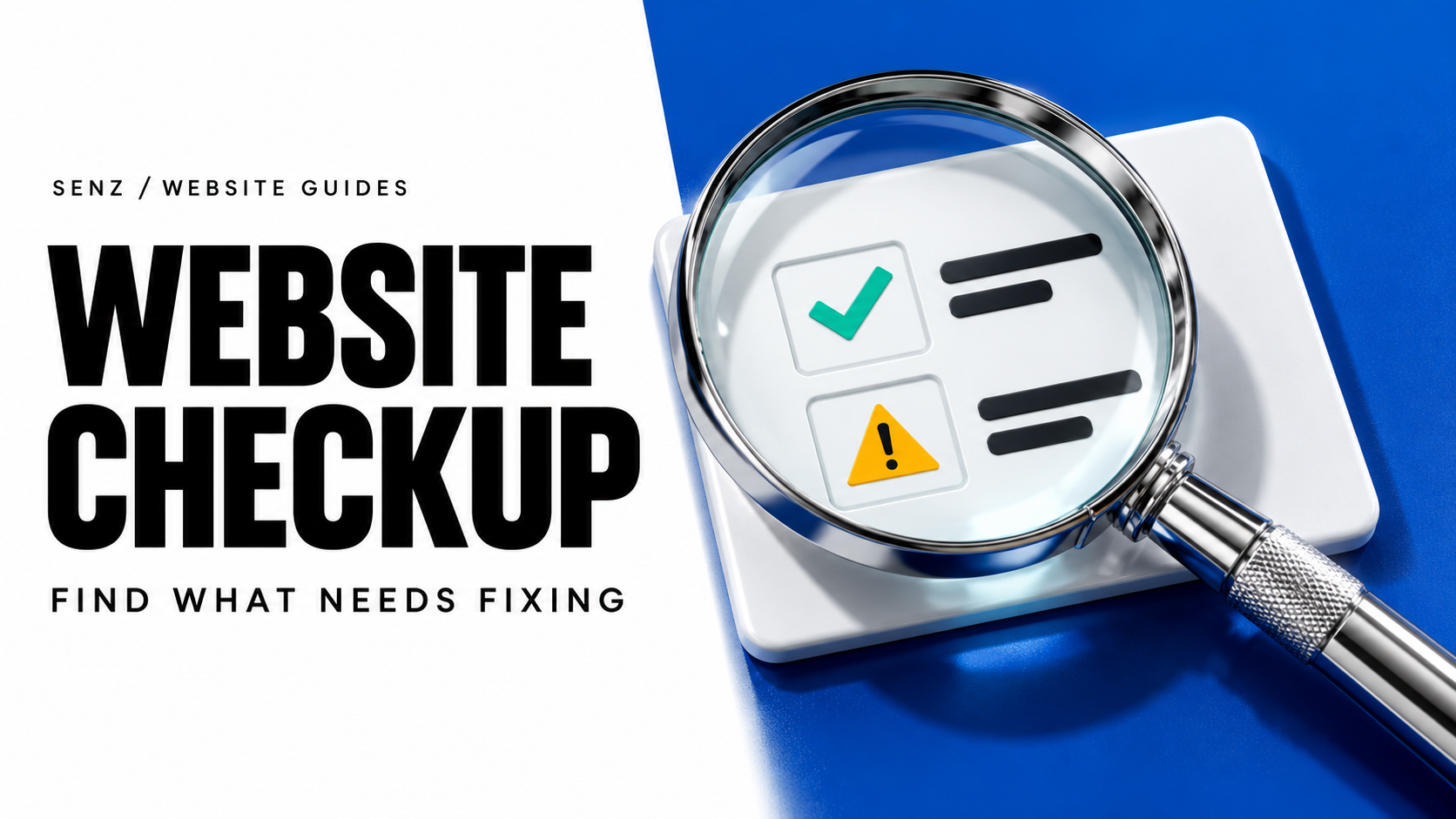
Start a website audit by doing what a buyer would do: open your site on a phone, find the right product or service, and try to contact your business. Record anything that stops that journey before spending time on a score.
This checklist is for owners of established small businesses with an existing website. It helps you decide what to fix and what evidence to give your web designer. It is an initial review of key pages, not a security assessment, a complete accessibility evaluation or a promise of better rankings.
Choose the pages and the customer task
Pick your homepage, your most important product or service page, and your contact page. Add any page you actively send people to from advertising, email or social profiles. A working homepage does not prove that a campaign link works.
Use a phone and a computer. Open a private browser window so you can see the site without your usual administrator login. Private browsing does not make you a first-time visitor in every technical sense, but it helps reveal pages that depend on being logged in.
Write down one task, such as “Find out whether this company supplies my product and request a quote.” For a service business, it might be “Check the service area and ask about availability.” Follow the same task on both devices.
Keep a simple record:
| Page and device | What you tried | What happened | Evidence | Priority and owner | Retest |
|---|---|---|---|---|---|
| Example: contact page, phone | Open the quote button | It opened an old email address | Screenshot and destination address | Urgent; website owner | Confirm the correct address opens |
The row above is an illustration, not a client result. Save the actual page address, date and screenshot for each problem you find. You can download the blank audit worksheet (CSV) and use one row per finding. It opens in a spreadsheet; keep passwords and customer information out of it.
Check that the site opens and explains the business
Open the exact addresses on your business profiles and marketing materials. Check that they reach the intended page without a login prompt, browser security warning or missing-page error. If a warning appears, record it and have the responsible provider investigate; do not tell customers to bypass it.
On the first screen, can someone tell what you offer, who it is for and what to do next? Read the page without relying on your knowledge of the business. A slogan may look good while leaving a buyer unsure whether you supply the service they need.
Then compare the site with your current business facts:
- Company name, phone number, email, address and service area.
- Products or services you actually supply and any important limitations.
- Opening hours, current offers and availability claims.
- Photos, qualifications and testimonials that you have permission and evidence to use.
Mark outdated facts individually. “Refresh the website” is hard to price or verify; “replace the old phone number on these three pages” is a clear repair.
Follow every important contact route
Tap the phone, email, WhatsApp, booking and quote links that your site actually offers. Check the destination number, address, business identity and any prefilled message. You can inspect a WhatsApp destination without sending a message.
A form needs a separate delivery check. If you own the site, arrange one clearly labelled test with the person who receives enquiries. Use your own test details, avoid sensitive information, and check both the confirmation on the site and receipt in the intended inbox or business system. Do not send a test through somebody else's website without permission.
A “thank you” page proves that the visitor reached a confirmation screen. It does not prove that your team received the enquiry. Check spam and any configured routing if the message is missing. Record receipt separately from whether someone replied.
For shops, customer accounts or payment flows, use an approved test environment or an agreed test method. An owner checklist is not a reason to place an unexpected live order or charge a card.
Use the site on a phone, then with a keyboard
On a real phone, open and close the menu, read the main service information and follow the contact route. Check whether a banner, chat bubble or sticky header covers a button. Try portrait and landscape if your customers are likely to use both. A desktop window made narrow is useful, but it does not replace the phone test.
Look for sideways page movement, clipped headings, tiny text, awkward form fields and buttons that are too close together. In a product catalogue, try finding one known item and reading its details. For a multilingual site, switch languages from a service or product page and see whether the same information remains available.
On a computer, use Tab and Shift+Tab to reach links, menus and form controls. Check that focus is visible, navigation is sensible and you can leave each control. Review visible field labels and readable text. These are preliminary checks drawn from W3C's Easy Checks; passing them does not establish full accessibility or legal compliance.
Investigate slow pages without chasing one score
Open your key pages over a normal mobile connection as well as your usual Wi-Fi. Note what is delayed: the main image, readable text, the menu or the contact button. A screenshot alone cannot show whether a page was usable while loading.
Run those pages through Google PageSpeed Insights, selecting mobile and desktop. Save the URL, date and report. Google distinguishes simulated lab results from real-user data; a small or new site may have too few samples for real-user reporting. Missing data is not a pass or fail. See Google's explanation of the two data types.
Use the report to investigate the delay you observed. Ask your provider to explain the proposed repair and retest the same page afterwards. A higher score alone does not demonstrate more enquiries or sales.
Check search visibility separately from usability
If you have access to Google Search Console, inspect the full address of a key page using URL Inspection. Compare Google's stored index information with the live test. They answer different questions: what Google has recorded, and whether the current page appears eligible for indexing. A successful live test does not guarantee indexing or placement in results. Google explains these limits in the URL Inspection documentation.
If a page is missing, save the reported reason and ask the responsible person to investigate it. Avoid changing indexing settings blindly, especially on a live shop or a site with temporary preview pages.
Read the Performance report separately to see whether search impressions and clicks exist for the page. Record the reporting period. A public search or a site: query can provide a clue, but a missing result alone is not a complete diagnosis. Keep these stages distinct: page opens, page is indexed, search shows it, someone visits, someone enquires, someone buys.
Confirm who controls the site and recovery
Identify who can renew the domain, access the website platform and restore the site. Check that the business has an appropriate recovery contact and knows who to call if the provider becomes unavailable. Do not put passwords or recovery codes in your audit spreadsheet.
Ask what is backed up, where it is stored and whether there is a documented way to restore it. A claim that “backups are on” leaves important questions unanswered. For a live business site, arrange recovery tests safely with the provider rather than experimenting on production.
This is a responsibility check. For the separate budgeting question, see our guide to website build and ongoing costs.
Turn findings into a short repair list
Use three practical priorities rather than adding every issue into an arbitrary score:
| Priority | Examples | What to do next |
|---|---|---|
| Urgent business blocker | Site will not open; enquiry goes to the wrong address; key booking path fails | Give the responsible person the exact URL, steps and evidence; confirm a safe repair |
| Important usability problem | Phone menu covers contact; product details are unreadable; keyboard user gets stuck | Agree the affected pages and how the corrected behaviour will be tested |
| Improvement | Vague introduction; old nonessential image; unclear supporting copy | Group related changes and decide whether they justify the effort |
After a repair, repeat the original task on the affected device and pages. Record the result beside the original finding. If the fix changes a shared menu or contact component, check the other places that use it too.
One broken contact link usually calls for a targeted repair. Several disconnected pages, unclear services and an unreliable enquiry path may justify a broader review. If you are considering that larger step, our website redesign page explains how to define the scope. An audit finding by itself does not mean you need a new website.
To see how we present findings and proposed next steps, open our sample website audit. If you are considering a paid review, the SEO audit cost guide explains what to compare in the scope, repair work and follow-up. The sample is an example of the deliverable, not a diagnosis of your website.
Questions owners often ask
Can I audit my website without technical skills?
You can check business facts, buyer tasks, phone usability and contact destinations yourself. Keep uncertain technical findings as questions for your provider, with evidence. Do not change settings you cannot safely reverse.
Is a free audit tool enough?
A tool can highlight issues on the pages it tests. You still need to check whether your offer is understandable, a contact route reaches the right person and business information is correct. Confirm the tool's coverage before treating its report as a review of the whole site.
How often should I repeat the checklist?
Repeat affected checks after changes to contact details, forms, navigation, products or the platform. Also choose a routine that fits how often your business information changes. Keep the previous findings so you can tell what was fixed and what has returned.